|
|
| Line 27: |
Line 27: |
| [[File:Export_InDe_4.png]]<br> | | [[File:Export_InDe_4.png]]<br> |
|
| |
|
| == Settings for Flex and Flock transfers & Silkscreen Heat Fixation == | | == Illustrator == |
|
| |
|
| [[File:Heatpress 150c.png|320px]] [[File:Heatpress 15s.png|320px]]
| |
|
| |
| This setting can be used to transfer Flex and Flock vinyls or to fix your silkscreened design on a piece of fabric.
| |
|
| |
| == Settings for Sublimation transfers ==
| |
|
| |
| [[File:Heatpress 195c.png|320px]] [[File:Heatpress 40s.png|320px]]
| |
|
| |
|
| |
| For more information about Sublimation Printing, go to [[Quickstartguide:Sawgrass|this page]].
| |
|
| |
|
| |
| Most software can generate a PDF file. We are offering here guides for exporting PDF files out of the most used software in the academy.
| |
|
| |
|
| |
| == InDesign ==
| |
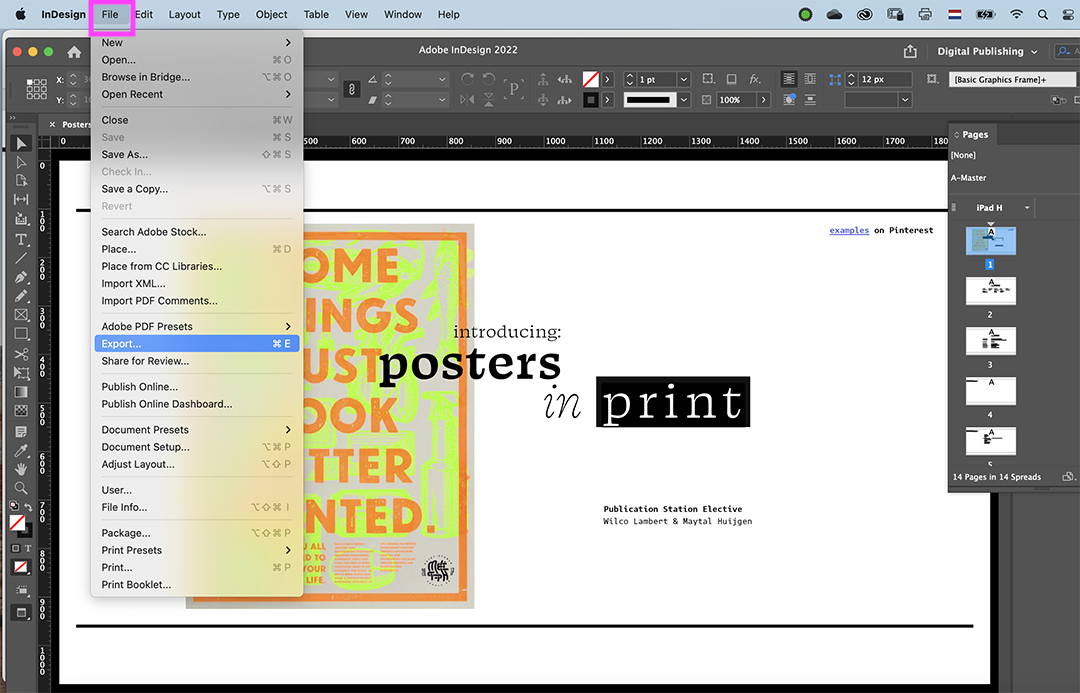
| go to file> export
| |
| <br><br>
| |
| [[File:Export_InDe_1.png]]<br>
| |
|
| |
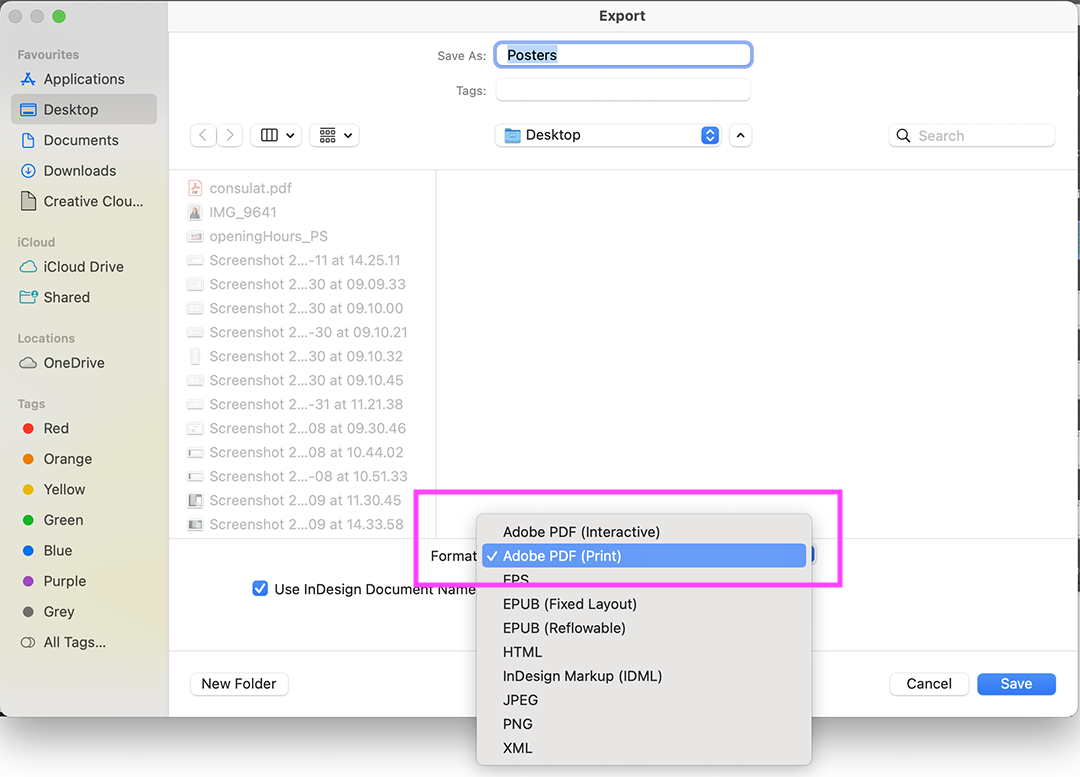
| choose format> Adobe PDF '''(Print)'''
| |
| <br>
| |
|
| |
| [[File:Export_InDe_2.png]]<br>
| |
|
| |
|
| |
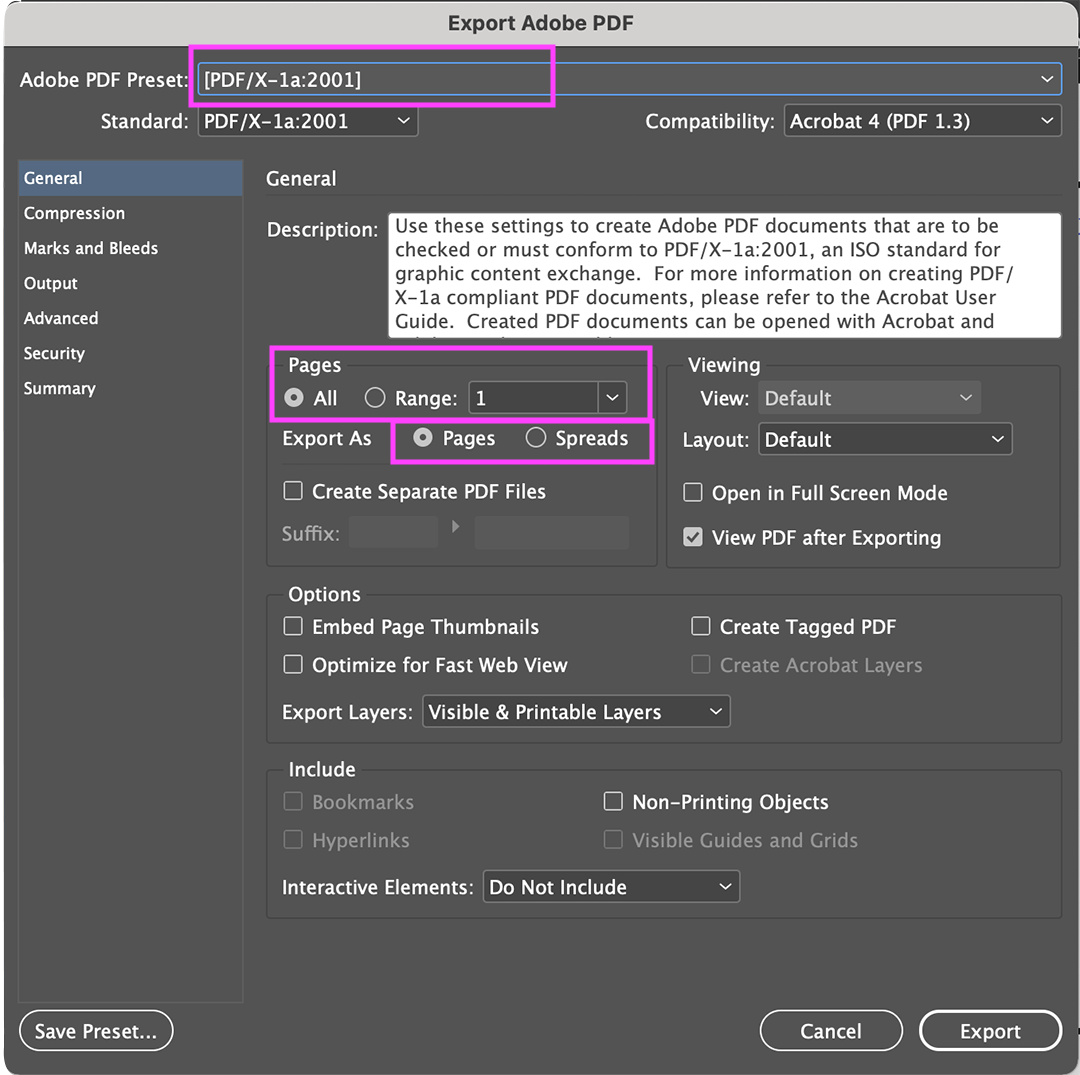
| choose preset PDF/X1a:2001
| |
| <br>
| |
| choose the relevant or all pages
| |
| <br>
| |
| export as '''pages''', ''not'' spreads, for single pages ''and'' booklets
| |
| <br>
| |
|
| |
| [[File:Export_InDe_3.png]]<br>
| |
|
| |
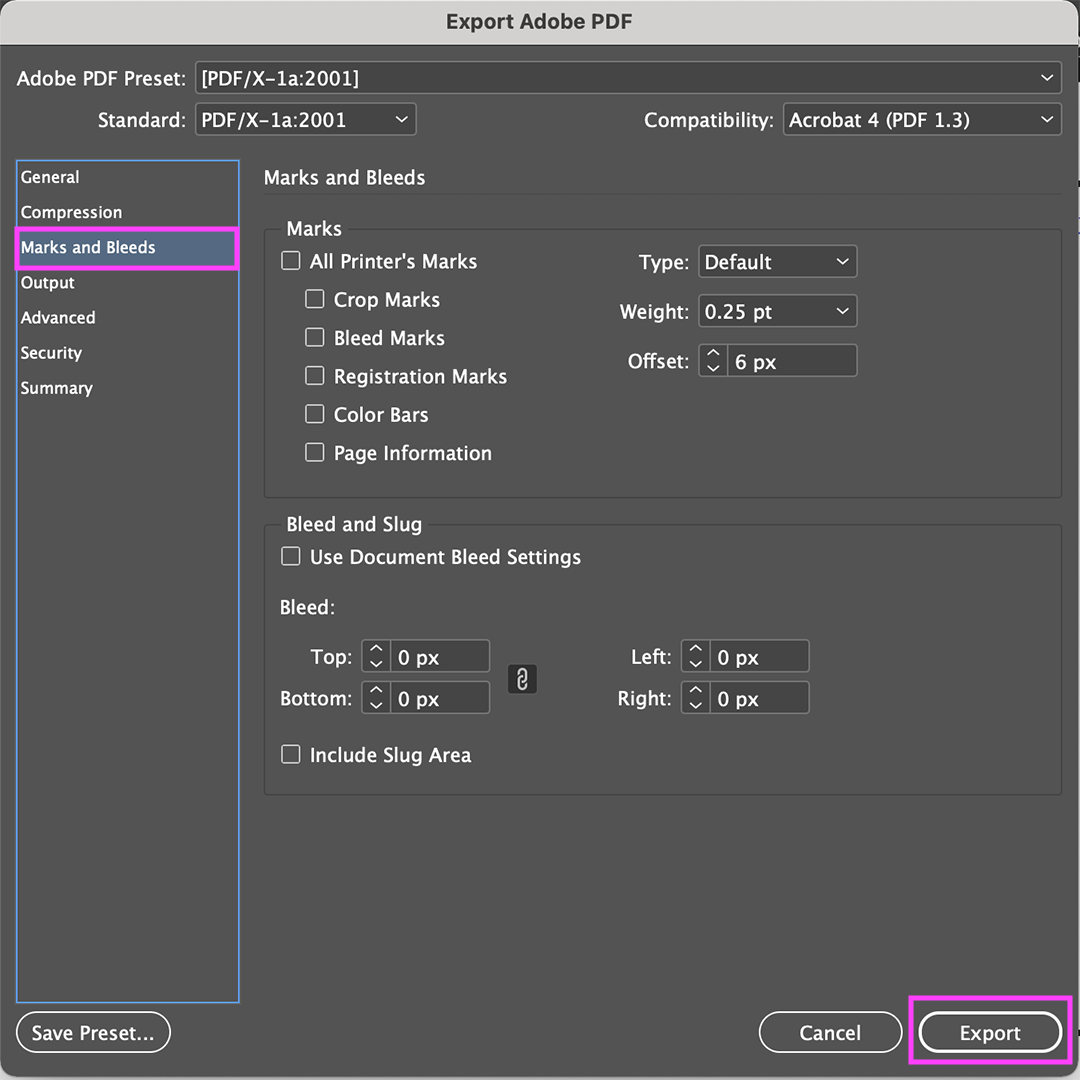
| if needed, you can add crop marks and export!
| |
| <br>
| |
|
| |
| [[File:Export_InDe_4.png]]<br>
| |
|
| |
| == Illustrator ==
| |
| go to file> save as | | go to file> save as |
| <br><br> | | <br><br> |
| Line 93: |
Line 52: |
|
| |
|
| [[File:Export_Illu_8.png]]<br> | | [[File:Export_Illu_8.png]]<br> |
| | |
| | |
| | == Illustrator == |
Revision as of 10:19, 26 August 2022
InDesign
go to file> export
choose format> Adobe PDF (Print)
choose preset PDF/X1a:2001
choose the relevant or all pages
export as pages, not spreads, for single pages and booklets
if needed, you can add crop marks and export!
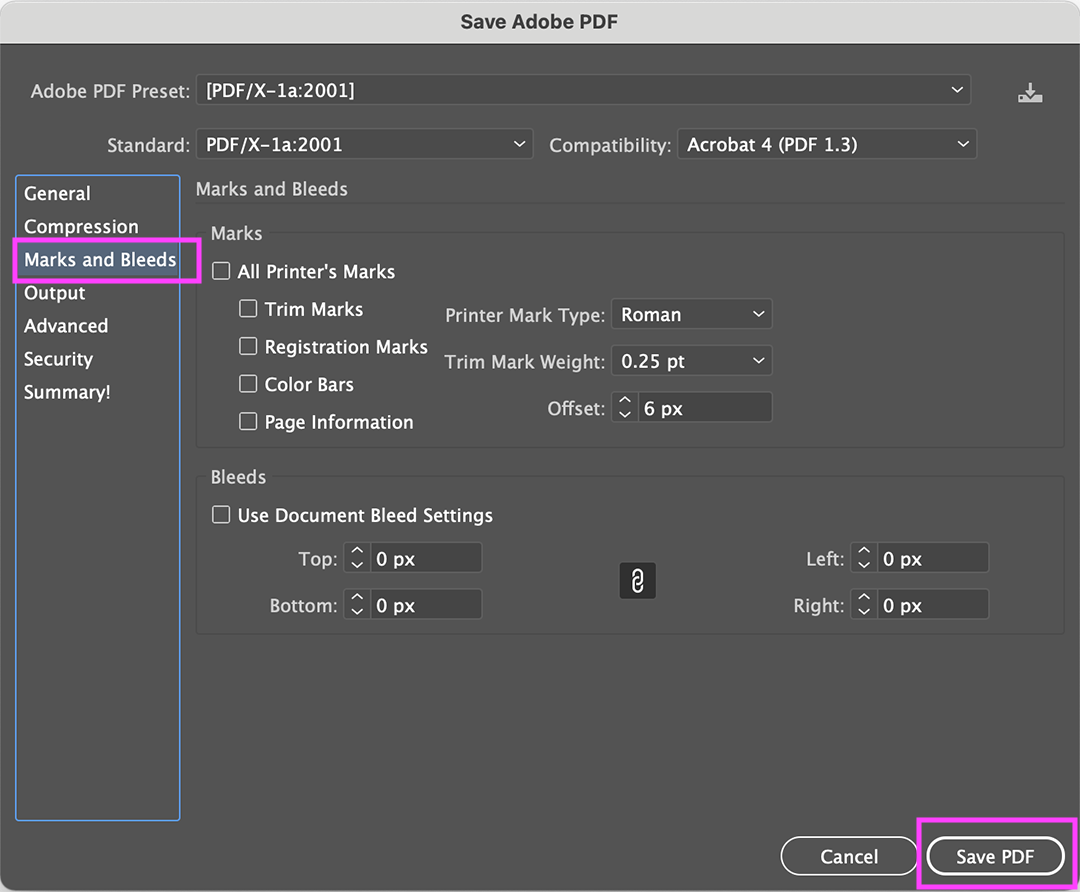
Illustrator
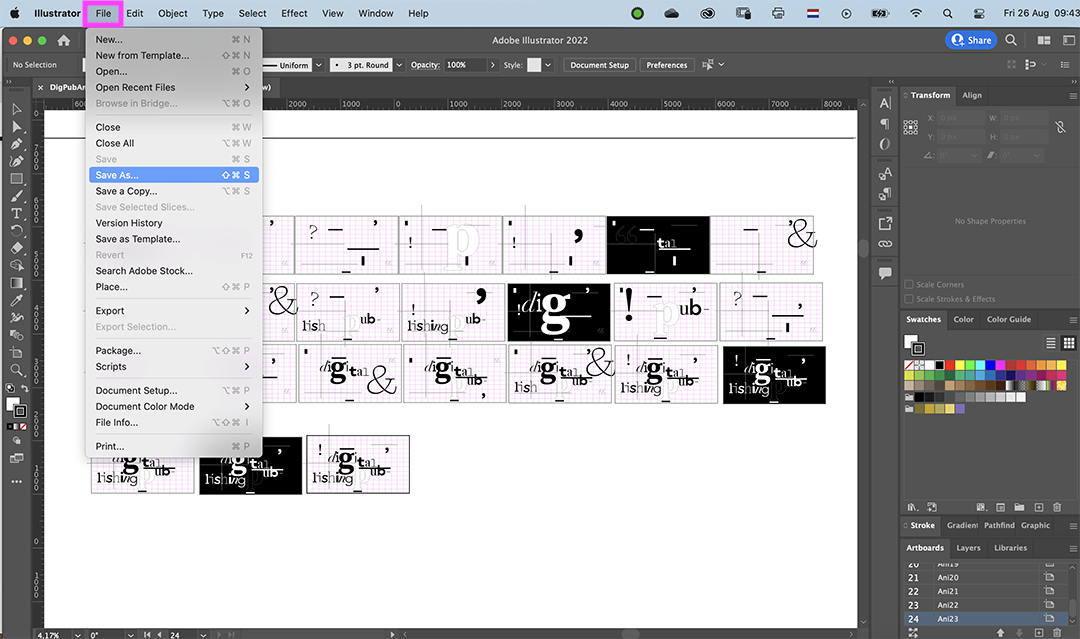
go to file> save as
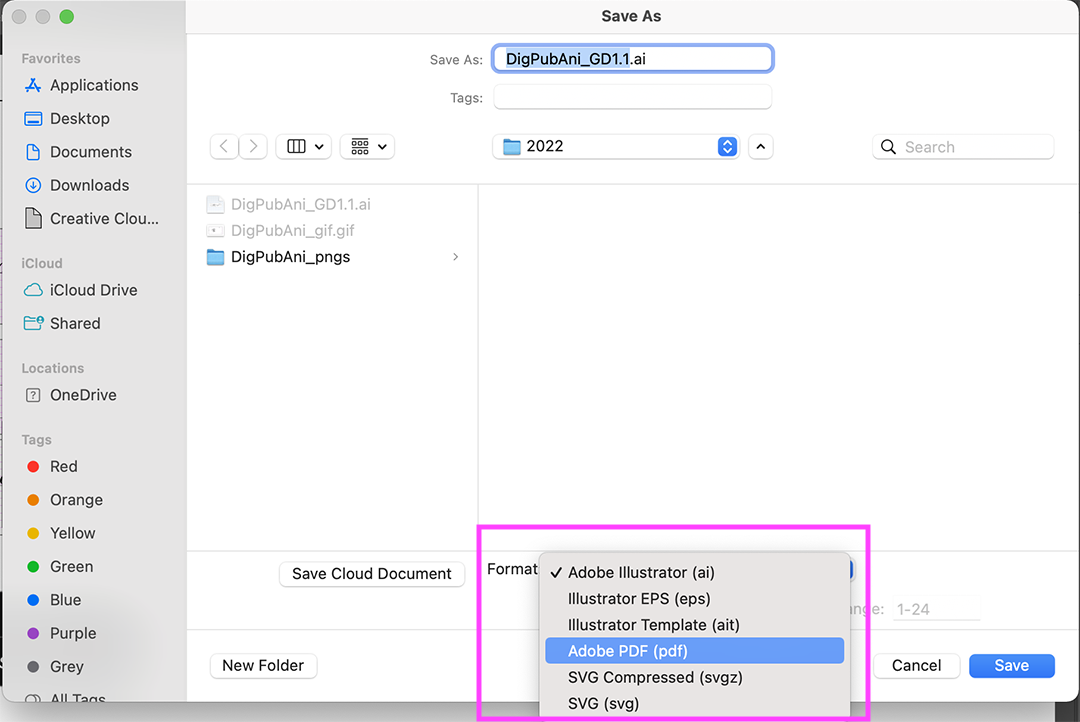
choose format> Adobe PDF
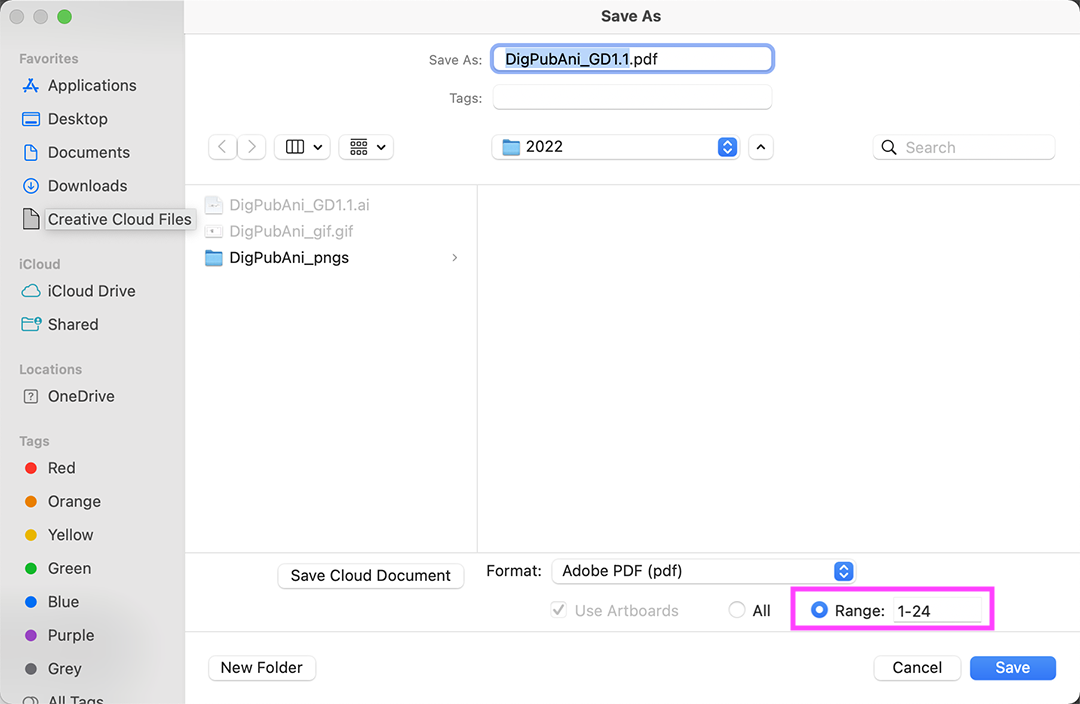
you can select specific pages or all of them
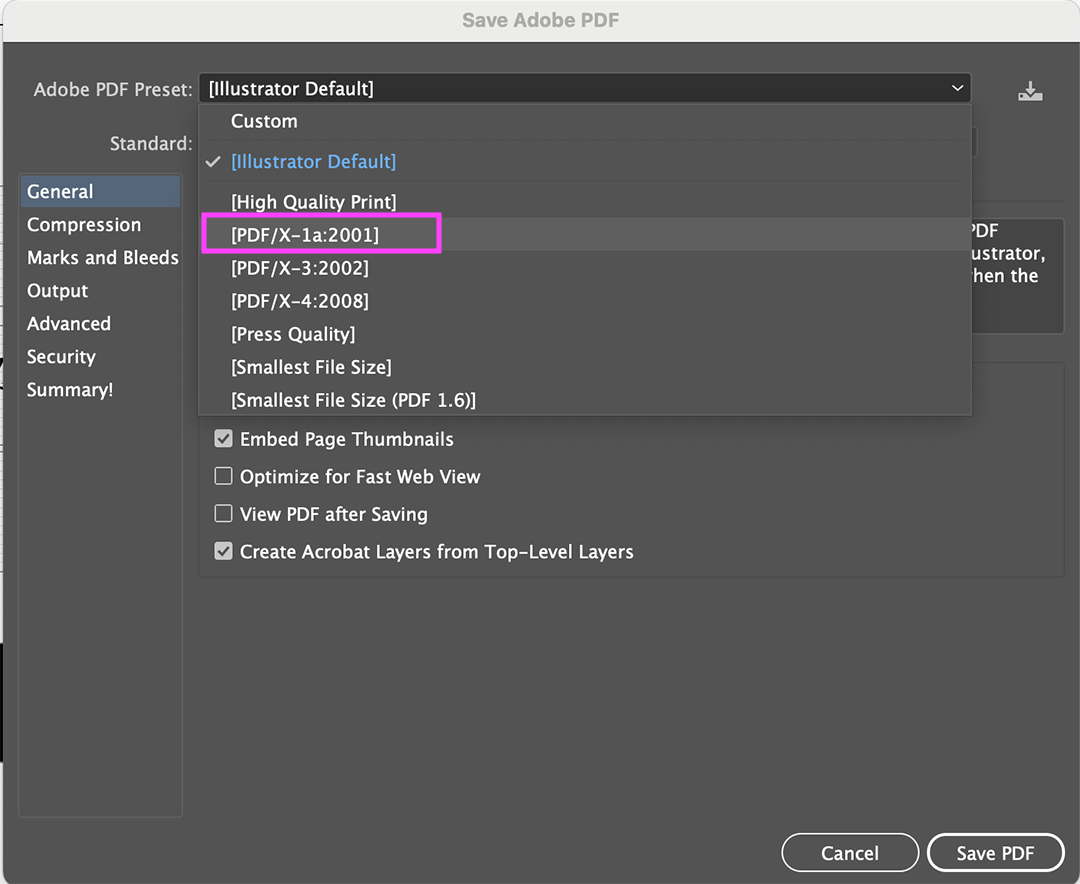
choose preset PDF/X1a:2001
if needed, you can add crop marks and save!
Illustrator


